2. Program Interface and Main Elements
Key Interface Elements
When you select "Create New Design", a new window opens with the main modeling tools and interface elements.
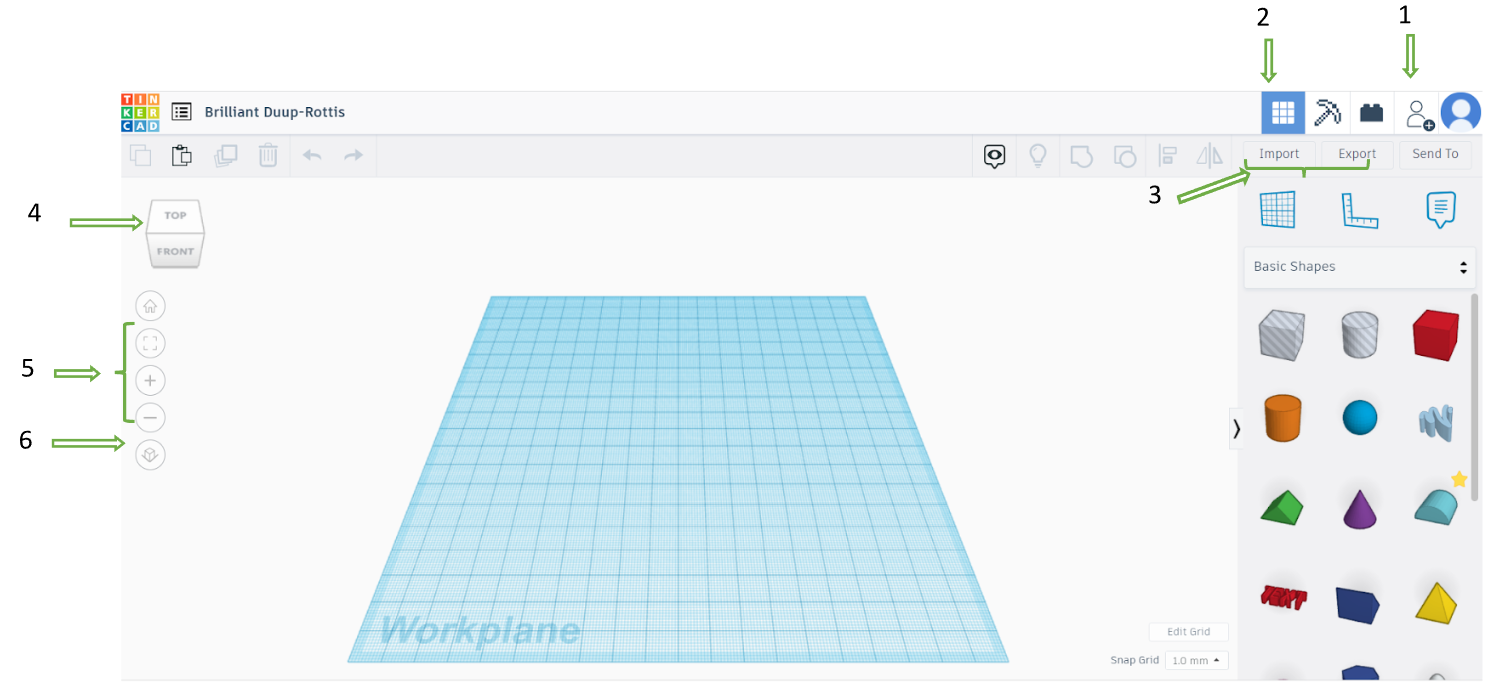
Figure 6. Main Parts of the Workspace
1 – Collaboration Tool. This feature allows multiple users to work on the same project. A unique link is generated, which can be shared with other users. Any changes made by one user are visible to others in real time.
2 – 3D Design Space. The main workspace where all modeling tools are available.
3 – Import and Export Tools. "Import" allows you to upload another project or a part of it into the scene. "Export" enables you to download your design in a specific format. For example, to prepare a project for 3D printing or CNC cutting, export it in .stl format.
4 – Navigation Tools. These tools allow you to move the entire scene and set different viewing angles (front, side, top, etc.). Note that this tool rotates the entire scene, not individual objects. You can also rotate the scene using the right mouse button.
5 – Zooming Tools. These tools allow you to zoom in and out on the scene view.
6 – View Mode Tool (Orthogonal or Perspective). Perspective Mode simulates real-life vision, where objects appear smaller as they move further away, and parallel edges converge at a vanishing point. Orthogonal Mode helps with precise modeling by displaying all parallel edges as truly parallel, ensuring accurate alignment and true-size representation of objects.